home24 Marketplace and the supplier model
You want to offer a furniture or home range on home24 Marketplace and connect product preparation to your central data source. The shopvibes integration uses the Mirakl-based partner process. Before the first test, agree with home24 which account, categories and target markets are approved for your range.
This page covers the marketplace workflow. The traditional supplier process has its own home24 Vendor page. Check the requirements and transfer methods of each model separately. The English language of this guide does not imply access to a UK or US programme.
What to prepare for the connection
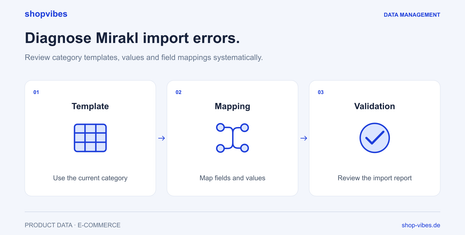
To configure the connection, the shopvibes team needs the API key for the intended partner account and the relevant category template. Generate the template in that retailer’s Mirakl portal for the categories you actually intend to use. It provides the basis for fields, allowed values and the mapping of your product data.
Agree which template and language will be used and who will review changes to category requirements. Another retailer’s Mirakl template cannot be applied to home24 without checking it.
| Foundation | What to clarify before the test |
|---|---|
| Partner account | Which home24 account will be connected, and which range is intended? |
| Category template | Does the current template match the specific product category? |
| Product identity | Can items and configurations be assigned unambiguously to your central records? |
| Attributes and values | Which properties come directly from the PIM, and which need a value mapping? |
| Ongoing changes | Which system owns content, prices and stock, and what does the configured connection cover? |
Prepare unambiguous furniture data for home24
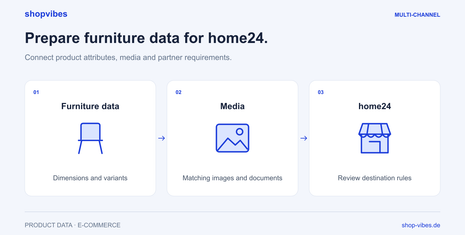
For home ranges, a single field called “size” is often insufficient. A bed can have a sleeping surface, different outer dimensions and several shipping packages. A set image can show more objects than are actually included. Keep these details separate in the product record from the outset.
| Data area | Practical checkpoint |
|---|---|
| Dimensions | Keep sleeping surface, outer product dimensions and packaging dimensions separate, with units |
| Material | Describe actual materials, finishes and, where relevant, different components |
| Included items | Distinguish the bed frame, mattress, slatted base and decorative props clearly |
| Variants | Use the appropriate item numbers, size information and images for each configuration |
| Media and documents | Assign variant images and the relevant assembly and care information |
This table helps you prepare. The current category template and agreed partner process determine which information is mandatory.
Getting started with shopvibes
- Define the account and range. Agree access, category and the first product group to test. Use the credentials for the intended partner account.
- Configure the template and mapping. Assign central attributes to the target fields. Check units and allowed values using a representative item.
- Test variants together. For example, select a bed with two sleeping surface sizes. Check that each configuration receives its own dimensions and images.
- Submit and address feedback. Start the listing through the configured connection. Correct missing product values in the source record and incorrect assignments in the mapping.
- Check the result in the partner process. Inspect the processed content and offer state. Then extend the range using the verified rules.
Example: a bed with two sleeping surface sizes
The following fictional internal data model shows why variant information must remain distinct. It is not an official home24 template.
| Item number | Sleeping surface (W × L) | Outer product dimensions (W × L) | Included items |
|---|---|---|---|
| DEMO-BED-160-GREY | 160 × 200 cm | 170 × 210 cm | Bed frame; mattress and slatted base excluded |
| DEMO-BED-180-GREY | 180 × 200 cm | 190 × 210 cm | Bed frame; mattress and slatted base excluded |
If both items receive “180 cm” from a shared series field, the output for the smaller configuration is wrong. Start the correction by checking the source of each variant’s dimensions. The home24 guide to dimensions and included items develops this test case with packages and a checklist.
When a submission does not look right
| Observation | Next checkpoint | Where to act |
|---|---|---|
| Information is missing | Is the value maintained for this exact configuration? | Complete the source record and inspect the output again |
| An existing value is rejected | Are the category, allowed values and assignment correct? | Compare the current template with the mapping |
| Images show another size or colour | Does the media belong to the correct item? | Correct the variant reference and media assignment |
| Technical submission is complete, but the result is unclear | What feedback and offer state are shown by the partner? | Check the partner process; do not infer publication from submission status |
The Mirakl import diagnosis guide explains how to check templates, values and mapping. The furniture solution shows a shared data model.
Checklist before extending the range
- Are the account, category and template version recorded clearly?
- Do dimensions, included items and images match every tested configuration?
- Have the necessary value mappings been checked for the test range?
- Have issues been corrected at the right source?
- Have content and offer state been inspected at the partner?
- Is the scope of subsequent updates through the connection agreed?
A configured API transfer does not replace assortment approval. Obtain contractual terms, processing times and account-specific approvals from home24. Our retailer template guide explains preparation for other partners.
Sources and review date
Reviewed on 3 November 2026. These shopvibes help centre instructions are in German and describe the named partner processes.