Automatically Fill Retailer Excel Templates
A new retailer sends an Excel file. Your product information already exists, but its columns use different names, dimensions need another unit and colours must match an approved list. Filling the file becomes a separate data project.
A PIM and reusable mapping let you populate retailer templates from central product data. You assign source attributes to destination fields, define formatting and value rules, and check the result before uploading. In shopvibes, downloadable templates and API partners are different delivery routes within product data distribution.
Exports require a partner template and its mapping to be set up first. Agree this setup with the shopvibes team. Whether your team can edit assignments in the Mapping Editor depends on the template being enabled and your user permissions.
What can you automate in a retailer template?
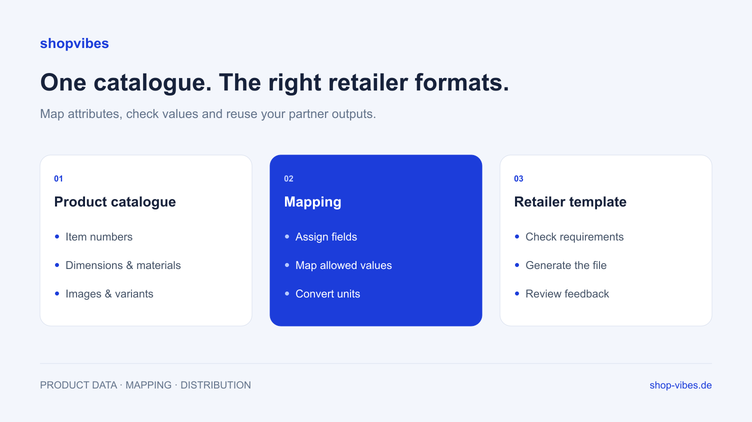
The repeated work is translating your data model into the partner’s model. A mapping specifies which attribute supplies the SKU, how several attributes form a title and which internal colour corresponds to an allowed retailer value.
Your team still selects the current template, approves the business logic and checks the retailer’s response. Generating a file does not mean the retailer has approved its products.
Use a configured template in shopvibes
Select the products for your partner, name the export and choose the configured template. Follow processing under Listings. When the result is ready, download the file and upload it to the partner.
For enabled templates, open the Mapping Editor under Settings → Templates. Edit source attributes, fixed values and value mappings there. The Complex Editor combines attributes with fixed text, such as {H} x {B} x {T} cm. Unit conversions such as centimetres to millimetres use an appropriately configured multiplier mapping.
shopvibes can return processing information for missing required values and values that cannot be assigned. The checks depend on configured rules and the partner integration. Reviewing variants, set contents and the actual published result remains part of your team’s workflow.
An example: From product record to retailer file
This fictional example explains mapping. Its destination fields and values are not an official marketplace template.
| Source data | Example value | Example destination | Rule |
|---|---|---|---|
| Item number | CHAIR-104-BL | supplier_sku | Preserve as text |
| Product type and range | Chair, LINN | product_title | Combine into a title |
| Internal colour | Midnight blue | colour | Map to Blue using an approved value list |
| Product width in cm | 48 | width_mm | Multiply by 10: 480 |
| Set contents | 2 chairs | set_content | Include quantity and unit |
| Main image | Public image URL | main_image | Assign the matching variant image |
The original colour remains in the product record. The mapping creates the value this retailer expects, while another partner can receive the original shade name.
Download the example mapping CSV to plan the rules with your team. It is a planning example, not a file for direct retailer upload.
Six steps to a reusable export
1. Select the current template and category
Get the template from the partner portal and record its category, language and version. Identify required fields and attributes that become mandatory for particular product types or variants. Keep an unchanged reference copy.
2. Prepare the product data
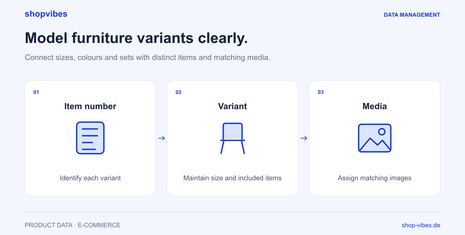
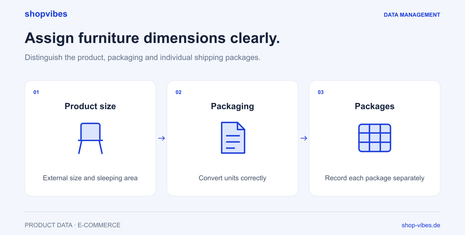
Use stable item numbers and separate product dimensions from packaging and shipping dimensions. Check descriptions, media and variant relationships in the central catalogue. Complete missing information there so other channels benefit too.
3. Map fields and values
Identify the source of every destination field. Distinguish direct mappings, constants, multiplier conversions and combinations. For controlled vocabularies, review the default values and processing information configured for unmatched inputs, and agree those settings deliberately.
4. Generate a representative test export
Start with a small selection: a simple item, colour variants and a set. These expose different mapping problems before they spread across the catalogue. Open the file and inspect leading zeros, decimal separators and image URLs.
5. Review the retailer’s response
Import the test file using the agreed partner process. Classify issues by source data, field mapping, allowed values, file format or retailer approval. Fix recurring causes in the catalogue or mapping, then regenerate the output.
6. Maintain the mapping
Reuse the approved rules for new products and updates. Compare requirements and repeat the test whenever the retailer changes its template. Assign an owner for the template, mapping and import feedback.
Pre-upload checklist
- Does the template match the partner, category and language?
- Are item numbers and identifiers preserved when opening the file?
- Are required and conditionally required attributes complete?
- Do colours, materials and units match the allowed values?
- Are product dimensions, package dimensions and set contents distinct?
- Do accessible image URLs point to the correct variant?
- Has the test import been reviewed and are unresolved issues recorded?
When should you use an API?
Templates suit partners that exchange files. An API can simplify repeated delivery when the partner offers one and supports the necessary operations. Check product creation, content updates, pricing and inventory individually: the label “API integration” does not describe its full scope.
An API partner still needs mapping and validation. The business requirements remain while the delivery route changes. Use the integration directory to explore partners and discuss the actual setup with the shopvibes team.
How shopvibes supports the workflow
shopvibes connects product data management, data quality and distribution. Maintain product information centrally and prepare the outputs your partners need. Our help centre explains the Mapping Editor, Complex Editor and template exports in German.
Furniture and home brands also need a consistent model for dimensions, materials, media and variants. See PIM for furniture manufacturers and home brands for the wider workflow.
Bring a retailer template to your demo. We can use your file, product data and channels to discuss a reusable export process.
About the author

Author
Tim Hoffmann
Chief Product Officer, shopvibes
Tim Hoffmann is Chief Product Officer at shopvibes. His work focuses on product data management, marketplace integrations and e-commerce workflow automation.