Amazon Seller and shopvibes at a glance
This integration is for businesses with an Amazon Seller account. shopvibes supports central product data preparation and submission through the configured Amazon Seller connection. Target marketplace, product types, mappings and the specific data scope are agreed at setup.
Product maintenance, technical processing and the actual listing state on Amazon are separate checks. Our Amazon Vendor page covers the other sales model.
Understand SKU, ASIN and product type
A SKU identifies your listing within your seller account. An ASIN identifies the product in the Amazon catalogue. First check whether the product already exists in that catalogue and how your offer should be associated with it. Do not invent identifiers to fill a data gap.
The product type determines required attributes and permitted variation characteristics. Requirements can depend on the target marketplace and account. Do not reuse a mapping from another category for a new range without checking it.
Which data belongs in the preparation?
| Area | What to check |
|---|---|
| Product identity | Stable SKU, existing identifiers and a clear catalogue relationship |
| Product type | Current requirements for the category and target marketplace |
| Variants | Related configurations and permitted distinguishing attributes |
| Dimensions and contents | Values, units, material and contents of the configuration sold |
| Media | Matching variant image and accessible media links |
| Offer | Authoritative source and agreed route for prices, stock and shipping information |
Take the required-field list from the current destination requirements. Also agree which data shopvibes will submit and which processes other systems will handle. This establishes a traceable workflow for your account.
Introduce the integration in six steps
- Define the account and destination. Choose Amazon Seller, the target marketplace and an initial product group. Agree access and required approvals with our team.
- Prepare product data and media. Check identifiers, shared model information, variant-specific attributes and image assignments.
- Configure the mapping. Connect PIM properties with destination attributes. Check units, permitted values and the relationships allowed by the product type.
- Submit a small test selection. Use a representative item and a complete variant group. Record the results you expect.
- Address feedback. Match each message to the product and cause. Add missing source data or correct the mapping.
- Check listing state. Review Seller Central and visible product information before submitting the rest of the range.
Test variants as a complete group
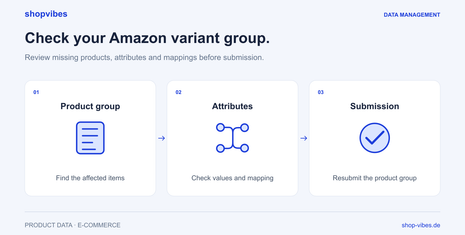
The documented shopvibes submission process automatically adds the related group when you select variants. It then checks the group members. If one product has an error, shopvibes holds back the whole group and identifies the products responsible. You can address the cause before resubmitting.
This behaviour applies to the described shopvibes process. Amazon’s product type determines the requirements for the variant relationship itself. Our article Amazon variants not transmitted takes you through the diagnosis.
Example: Two configurations of a table range
These are fictional internal records, not an Amazon upload template. Whether the selected category allows this grouping must be checked before setup.
| Internal item number | Width | Other details | Check |
|---|---|---|---|
| DEMO-TABLE-120-OAK | 120 cm | Depth 80 cm, height 75 cm; one table | Image and dimensions of the smaller configuration |
| DEMO-TABLE-160-OAK | 160 cm | Depth 80 cm, height 75 cm; one table | Image and dimensions of the larger configuration |
Both configurations belong internally to TABLE-LINN and are made from melamine-faced chipboard in this example. Shared model details must not overwrite the individual width. Recheck the entire group after a correction.
Distinguish file uploads from API feeds
A manual file upload in Seller Central and a programmatic API feed are different delivery routes. Amazon stopped supporting legacy XML and flat-file listing feeds through the Feeds API on 31 July 2025. That is not a general statement about all manual upload templates.
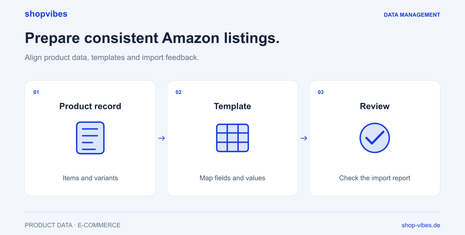
Use our Amazon flat-file guide to prepare files and review import reports. We clarify which interface your setup uses during implementation.
Checklist before extending the range
- Are the account, market and product type clear?
- Do SKUs and existing catalogue associations match?
- Have variant relationships and distinguishing attributes been checked?
- Do dimensions, text and images belong to the specific configuration?
- Have errors in the named group members been addressed?
- Is the update route clear for each data type?
- Have processing and the actual listing state been reviewed?
Common questions
Can I just select an error-free variant again? The documented shopvibes process completes the group and checks it together. Correct the group members identified in the feedback first.
Are all products buyable after a successful submission? Acceptance of a submission does not establish that. Review feedback, the current state in Seller Central and the presentation on Amazon.
How do other retailers fit into this workflow? A consistent product record can support other configured outputs. Each partner brings its own requirements. Our furniture variants and retailer templates guides explain preparation.
Sources and review date
Reviewed on 3 November 2026.