Selling on Kaufland: prepare product data and seller offers
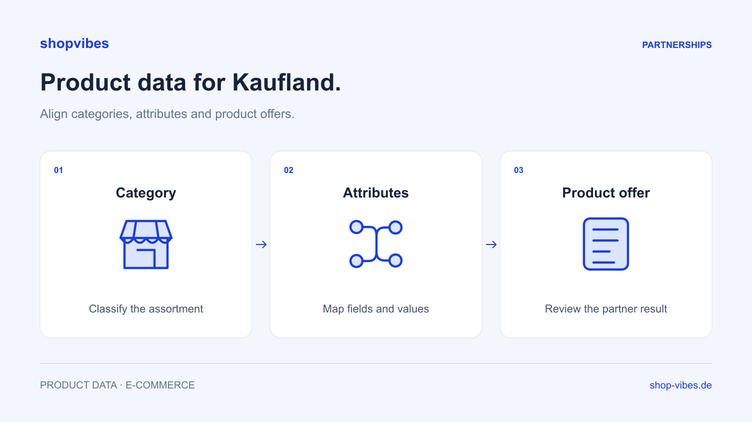
An additional sales channel raises new questions for your team: which market is approved, which items should launch first, and where are prices and stock maintained? Without answers, the first listing can quickly become a series of isolated corrections.
This guide helps you prepare a Kaufland Global Marketplace launch as a manageable data project. It is for brands and merchants setting up an account or connecting an initial range. The shopvibes Kaufland integration describes the subsequent data process.
1. Define the business model and target market
First establish whether you sell to end customers as a Marketplace merchant or supply Kaufland directly. These processes have different responsibilities. The shopvibes help centre also distinguishes their transfer routes: Marketplace product data, prices and stock use the Seller Portal; in the Retail process, prices and stock use the Supplier Management System.
For a Marketplace launch, define the target market, intended merchant account and initial range. Check the current registration documents and approvals directly in Kaufland’s onboarding process. An existing connection does not automatically establish permission for every additional market.
Record three decisions with your team:
- Which account and target market belong to this project?
- Which product group will be tested first?
- Who answers product questions and checks the first results?
2. Choose a representative test range
One unusually simple item tells you little about the quality of the whole data process. Choose a small group with typical differences: a table in two widths, an item with several images and a set if sets form part of your range.
This fictional range is a planning aid. It contains no official Kaufland fields or valid product identifiers.
| Test item | Distinguishing feature | What your team checks |
|---|---|---|
| DEMO-TABLE-120-OAK | Dining table, 120 cm wide | Clear identity, complete dimensions and matching image |
| DEMO-TABLE-160-OAK | Same series, 160 cm wide | Variant relationship without copying the wrong width |
| DEMO-CHAIR-BL-2SET | Two chairs sold as a separate set item | Contents supplied, quantity and correct item assignment |
Use your approved item numbers and product identifiers for the actual transfer. The DEMO references in this table are teaching examples.
3. Prepare product data and the seller offer separately
A reliable product record explains what is being sold. Your seller offer describes the terms on which you sell it. Check both areas before the first test.
For furniture, keep dimensions, material, finish and contents supplied unambiguous. “Natural oak” might describe a decorative finish; the copy must not turn that into solid oak. If a table is pictured with chairs, make clear whether only the table is supplied.
The offer also needs a responsible source. Specify which system maintains prices and stock and who checks changes. If those values come from an ERP, agree a process for any parallel manual corrections in the merchant account.

4. Create a simple handover checklist
You can use this list for internal onboarding. Required-field checks still follow the chosen category and target market.
| Decision | Required outcome before launch |
|---|---|
| Account and market | Responsible merchant account and approved target market are defined |
| Product selection | Test items cover relevant sizes, media and sets |
| Product identity | Item number and EAN match each variant |
| Product content | Dimensions, material, contents and media have been checked by the responsible team |
| Offer data | Leading source for prices and stock is named |
| Results review | Responsible person and review time are defined |
Confirm current fees, contract terms and available markets directly with Kaufland. An old fee table is not a reliable basis for the commercial assessment of today’s launch.
5. Review the whole first test
After transfer, check more than whether the technical process ran. Open the relevant items in the correct market and inspect your seller offer. Compare the values that differ between test items in particular: width, colour, image and contents supplied.
Record discrepancies in a form that allows someone to address the cause:
- Record the item number and target market.
- Compare the expected and actually visible value.
- Add the processing feedback.
- Assign the correction to the source system, mapping or offer process.
- Repeat the same test after the change.
For an existing product with no visible offer, our Kaufland troubleshooting guide takes you through the next checks.
How shopvibes supports the prepared process
shopvibes brings your product information into a shared structure and maps it to the configured partner’s requirements. For Kaufland, the help centre documents relevant product and offer data transfer through the connected interface. Update scope, responsibilities and account approvals are agreed for your setup.
The shared data model also helps with the next retailer. Our guide to sizes, colours and sets explains preparation. The PIM guide describes the role of central product data. The furniture solution connects both topics with distribution to retail partners.
Bring a product group and your intended Kaufland market to a demo. We can discuss the process using your actual range.
Sources and review date
Reviewed on 3 November 2026.
- shopvibes: Kaufland Marketplace and Retail setup, in German
- Kaufland: product data
- Kaufland: managing seller offers
About the author

Author
Philipp Schlieker
CTO & Co-Founder, shopvibes
Philipp Schlieker is CTO and co-founder of shopvibes. His work covers product data management, system integrations and e-commerce workflow automation.