Kaufland: EAN found, but your offer is not visible
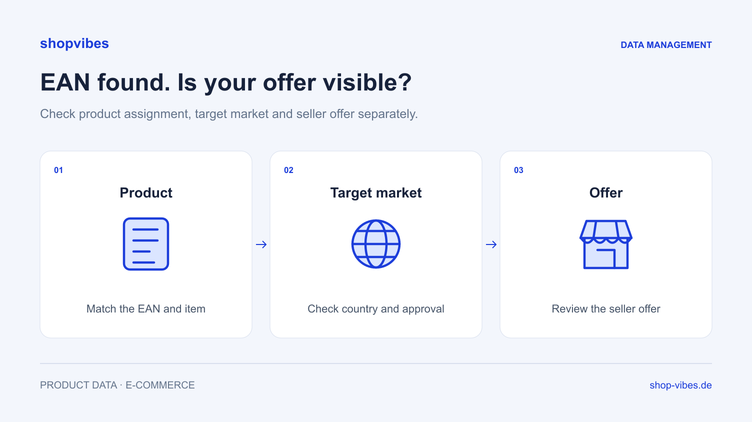
You can find the EAN in the Kaufland catalogue, but your offer does not appear on the product page. Uploading the same description again often does little to help. First work out where the process remains unresolved: the assigned item, product data, your seller offer or the target market being checked.
This guide describes a checking process for Kaufland Marketplace. Direct supply to Kaufland follows a different process. The shopvibes Kaufland integration page explains the setup requirements.
Why finding an EAN does not confirm a visible offer
Kaufland maintains product data and seller offers separately. Several merchants can attach offers to one product. Searching for an EAN therefore answers a different question from checking whether your own offer is live in the intended market.
Troubleshoot using a fixed combination of item, merchant account and target market. Add the time of your last change. This prevents you from comparing a product page in another market or a state from before the latest transfer.
1. Check the assigned variant
Compare the catalogue product with the item you actually intend to sell. Do brand, model, size, colour and contents supplied match? A matching series name alone is insufficient.
This fictional example uses no real EAN or official Kaufland template.
| Check | Expected for DEMO-TABLE-160-OAK | Suspicious difference |
|---|---|---|
| Model | LINN dining table | Another model from the same brand |
| Width | 160 cm | Product page describes 120 cm |
| Material | Melamine-faced chipboard | Description says solid wood |
| Contents supplied | One table, no chairs | Copy suggests a dining set |
| Media | Matching variant | Main image shows the other size |
If product identity is already assigned incorrectly, address that cause first. Compare the identifiers used with your approved source. Do not try assigning an EAN to a different item to work around an error.
2. Check the correct target market
Record the market for which the product and your offer should be configured. Check feedback there and in the relevant language. A result in another market does not answer the original question.
Useful test details include:
- Internal item number and the product identifier actually used.
- Intended Kaufland target market.
- Merchant account responsible for the offer.
- Time and scope of the last change.
- Expected content and offer status.
3. Inspect the seller offer and its not-live reasons
Next, check whether your own offer exists for the correct product. Compare current offer information with its leading source, including price, available quantity and agreed delivery details.
Kaufland’s API documentation distinguishes an offer’s status from its actual live status. It also documents a market-specific query for reasons why an offer is not live. Technical checks can use is_live and the associated not-live reasons. These API fields do not imply that shopvibes has an identically named display.
Use the actual feedback as your starting point. If it refers to stock, check the stock source and configured transfer. If it concerns incomplete product data, inspect the affected attributes. A new title does not fix missing stock; a stock correction does not supply a missing material attribute.
4. Correct the right part of the process
| Observation | Next check | Appropriate place to make the correction |
|---|---|---|
| Catalogue product does not match the variant | Compare identifiers and the actual item | Approved product assignment and data source |
| Your offer is missing in the market being checked | Account, market and intended offer transfer | Setup or offer process |
| Feedback concerns a product value | Check the affected attribute and target requirement | Product record or mapping |
| Feedback concerns price or stock | Compare the leading source and current output | Agreed offer data flow |
| Retailer displays different copy or an image | Record submitted values and visible presentation | Review feedback and, if necessary, clarify with Kaufland |
This table is a methodological aid, not a complete list of official error messages. Work with the actual message for your item.
5. Repeat the same test after resubmission
Start with one clearly defined case. Where possible, change only the identified cause and record the correction. Then check the same combination of item, account and target market again.
Complete three checks:
- Was the corrected information delivered through the intended process?
- Has the previously observed feedback been resolved or changed?
- Do the published product content and your offer match the intended variant?
Kaufland’s visible product content can come from several sources. For an unresolved difference, retain both the values you submitted and the actual visible state for comparison.
Prevent the same error in further items
A recurring error needs a reusable correction. After testing, identify other items using the same source attribute or mapping. For an incorrect width, check whether a shared series field was used instead of each variant’s width.
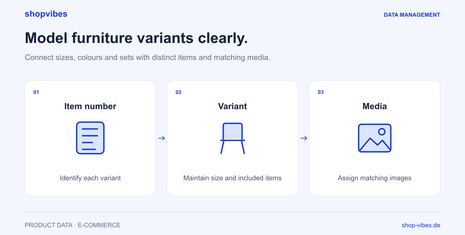
Our guide to furniture variants, sizes and sets helps with the structure. The guide to product dimensions and packages explains how to distinguish measurement types.
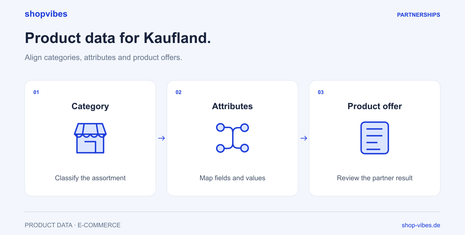
shopvibes supports central data maintenance and the agreed Kaufland connection. Its help centre documents Marketplace product data, prices and stock through the Seller Portal. The leading source and update process are defined for your setup. Actual live status remains part of the checks at the retail partner.
Bring an affected item and its processing feedback to a demo. A specific case helps us discuss the data process precisely.
Checklist for the next case
- Do the EAN, item number and actual variant match?
- Are you checking the intended merchant account and correct market?
- Does your seller offer exist?
- Have you inspected current feedback or the not-live reason?
- Is the correction being made in the product record, mapping or offer process?
- Was the same test repeated after the change?
- Are other items affected by the same cause?
Sources and review date
Reviewed on 3 November 2026. This process is a working aid; specific data requirements and account approvals depend on your Kaufland setup.
- Kaufland: product data and product assignment
- Kaufland: offers, live status and not-live reasons
- shopvibes: Kaufland connection, in German
About the author

Author
Tim Hoffmann
Chief Product Officer, shopvibes
Tim Hoffmann is Chief Product Officer at shopvibes. His work focuses on product data management, marketplace integrations and e-commerce workflow automation.